
Google Android
Google's Android runs on multiple phone and tablet devices produced by various manufacturers. The following instructions are illustrated with screenshots from a generic Android version. Icons to access various functionality may appear different if the manufacturer of your device has chosen to customize Android for their product. Support for contact and calendar syncing is provided by third-party applications.
Mail Configuration Instructions
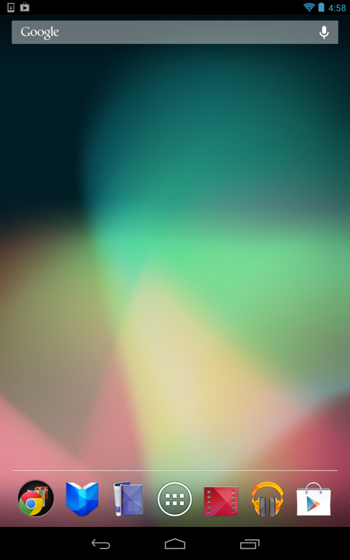
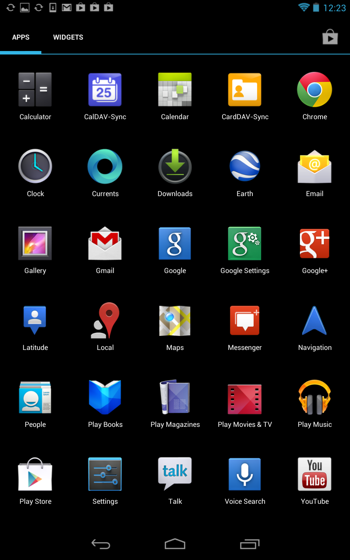
- Touch the Apps icon.
- Touch Settings.
 |
|
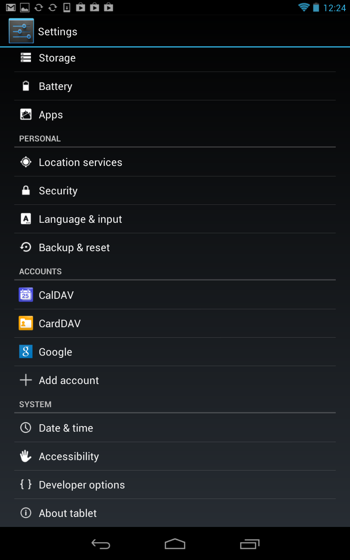
- Touch Add Account under Accounts.
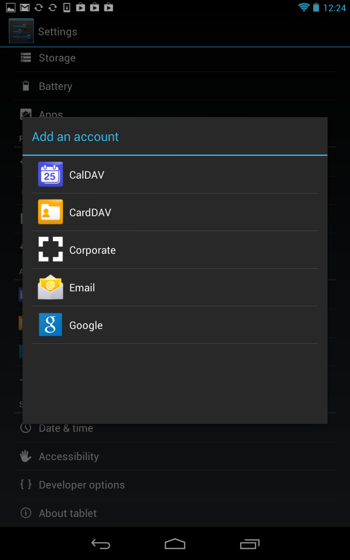
- Select Email as the account type.
 |
 |
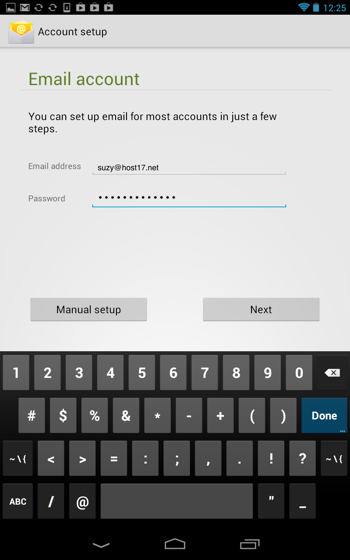
- Type your email address.
- Type your password.
- Touch Next.
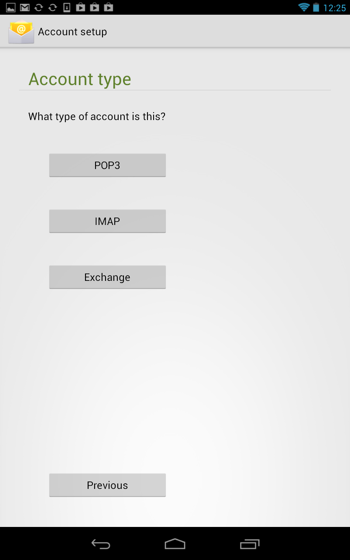
- On the next page, touch IMAP.
 |
 |
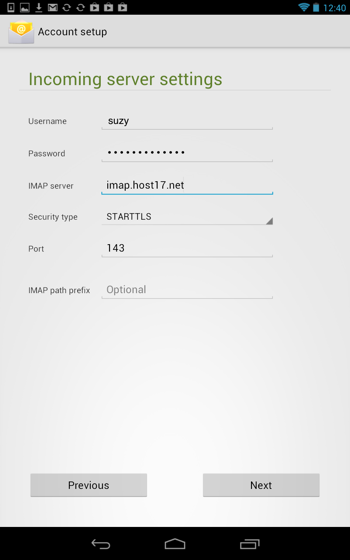
- Type your Host 17 Id in the Username field.
- Your password should already appear in the Password field.
- Type imap.host17.net for the IMAP server.
- Select STARTTLS for Security type.
- You may use the default 143 for Port.
- Touch Next.
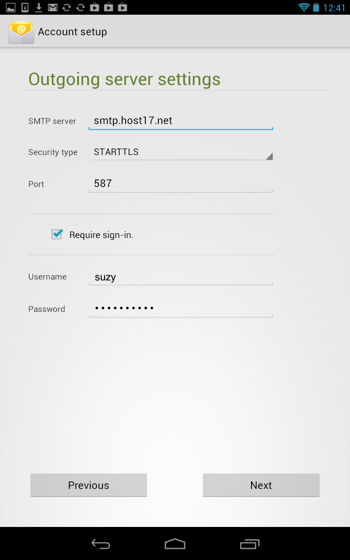
- Type smtp.host17.net for the SMTP server.
- Select STARTTLS for the Security type.
- You may use the default 587 for Port.
- Make sure that the Require sign-in box is checked.
- Your Host 17 Id should appear in the Username field.
- Your password should already appear in the Password field.
- Touch Next.
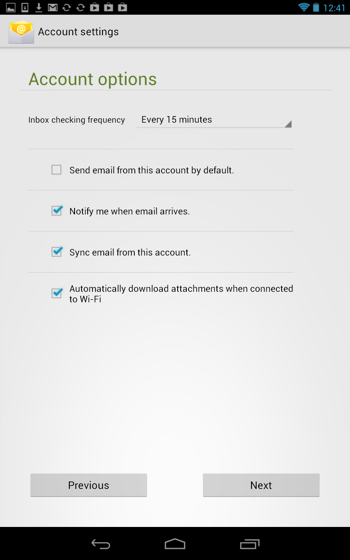
- Select the various account options according to your preferences.
- Touch Next.
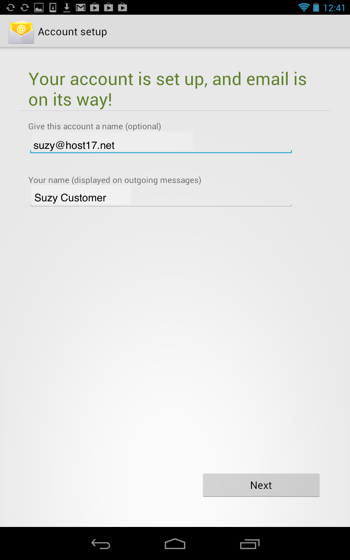
- Type a name for how you would like to identify your email account.
- Type your name as you would like it to appear in your outgoing messages.
- Touch Next.
Contacts Configuration Instructions
Android does not natively support contact sync. You must purchase and install the CardDAV-Sync app from Google Play. Search for CardDAV in Google Play. Select, purchase and install the CardDAV-Sync app.
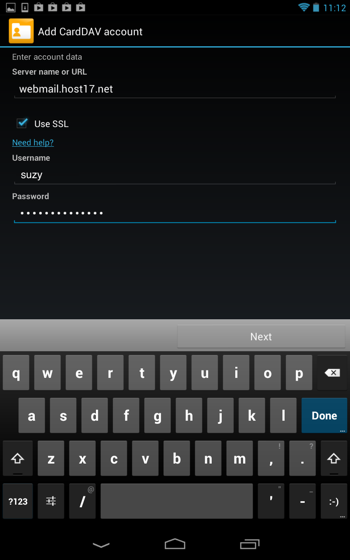
- To add your account, type sogo.host17.net for the Server name or URL.
- Make sure the Use SSL box is checked.
- Type your Host 17 Id for the Username field.
- Type your password for the Password field.
- Touch Next.
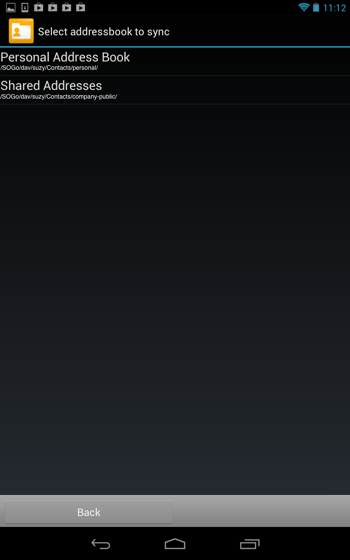
- Select the address book you would like to sync. Shared Addresses is your company-wide address book.
- Touch Next.
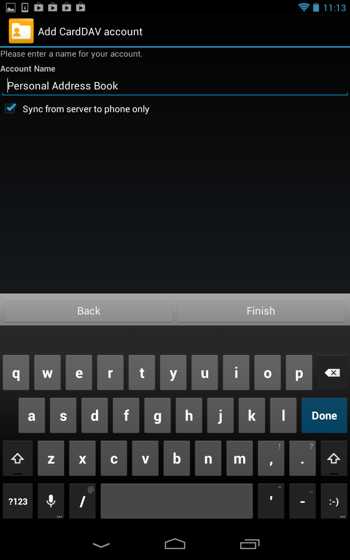
- Type the name you would like your address book to appear as on your Android device.
- Uncheck the Sync from server to phone only box if you would like to be able to sync contacts added on your Android device to your account.
- Touch Finish.
Calendar Configuration Instructions
Android does not natively support calendar sync. You must purchase and install the CalDAV-Sync app from Google Play. Search for CalDAV in Google Play. Select, purchase and install the CalDAV-Sync app.
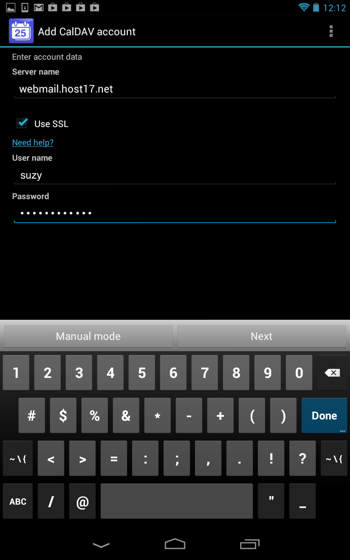
- To add your account, type sogo.host17.net for the Server name or URL.
- Make sure the Use SSL box is checked.
- Type your Host 17 Id for the Username field.
- Type your password for the Password field.
- Touch Next.
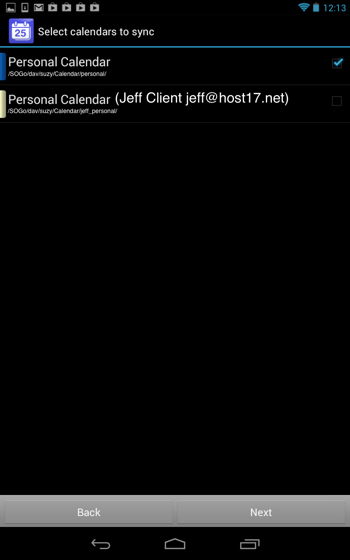
- Your calendar will appear as well as any calendars you have been delegated access to.
- Tap the calendars you would like to sync with your device.
- Touch Next.
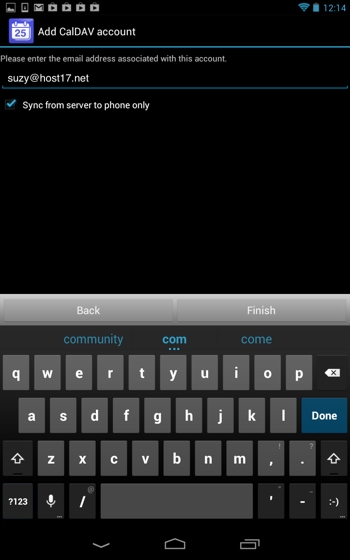
- Type the email address you would like to associate with this calendar.
- Uncheck the Sync from server to phone only box if you would like to be able to sync events added on your Android device to your account.
- Touch Finish.
Comments
0 comments
Please sign in to leave a comment.