
Microsoft Outlook
Microsoft Outlook is generally distributed as part of the Microsoft Office Suite of productivity software. As Microsoft Office is typically already installed, installation instructions are not included here. If you require assistance installing Microsoft Office, please consult the Microsoft Office Website.
Configuration Instructions
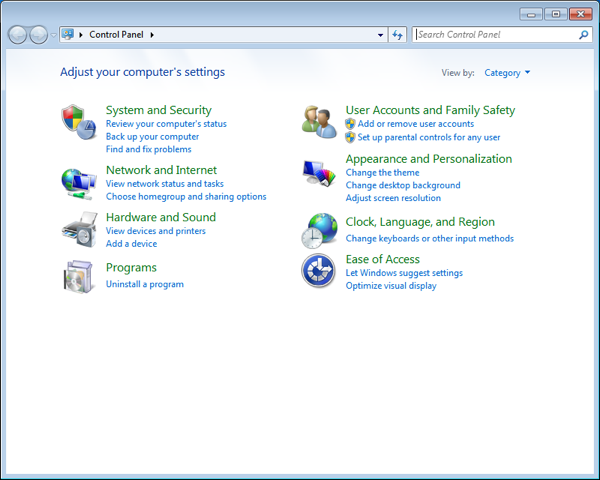
- To begin configuration, open the Windows Control Panel
- Click User Accounts and Family Safety.
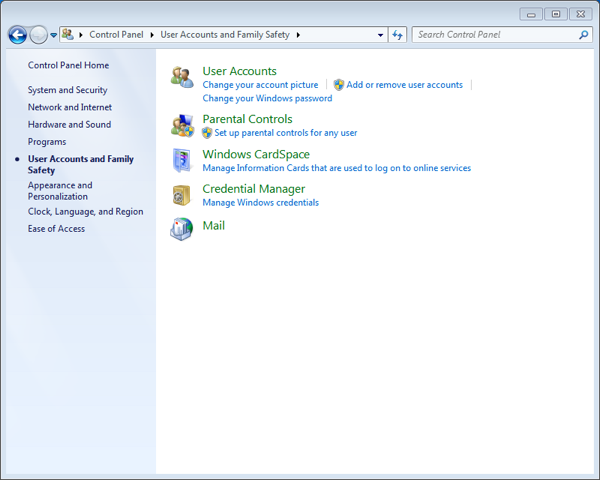
- Click the Mail icon.
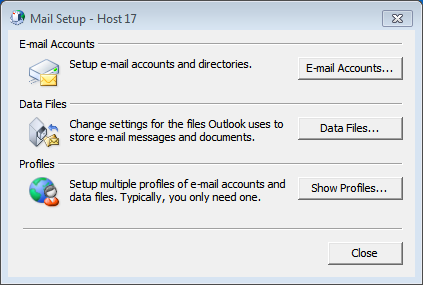
- If this is the first email account to be setup in Outlook, proceed to the next step.
- Click the Show Profiles button.
- Click the Add button.
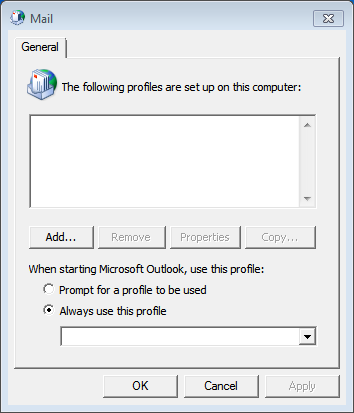
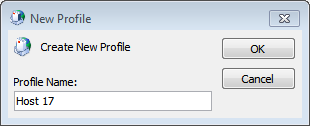
- Type a name of your choosing for the profile.
- Click OK.
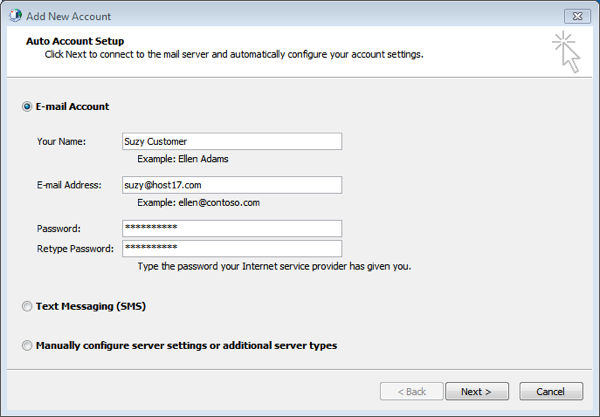
- Fill in the form with your name, email address and password.
- Click Next.
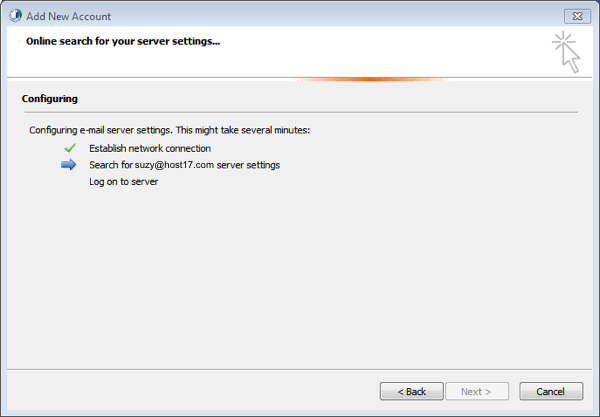
- Outlook will search for your email settings.
- This could take some time.
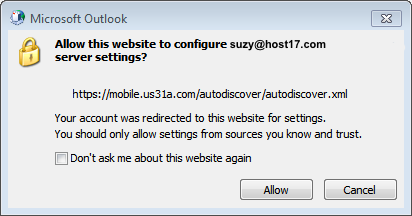
- When presented with this alert, please make absolutely sure to check the Don't ask me about this website again box.
- Click Allow.
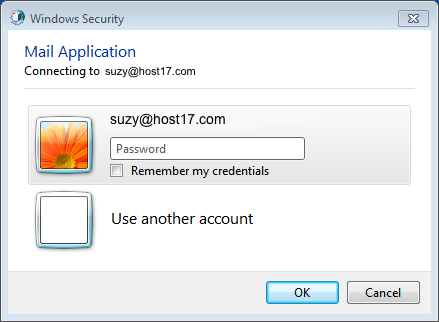
- When presented with this box, type your password.
- Click OK.
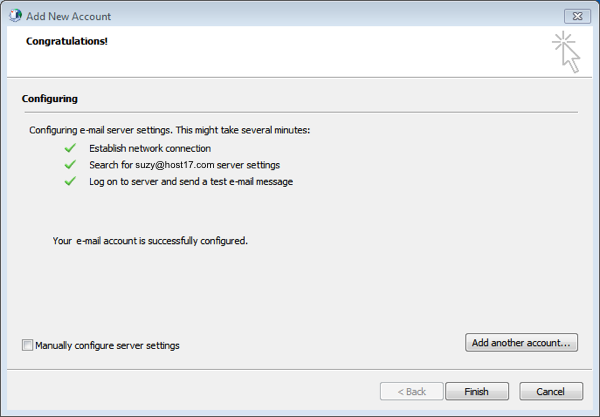
- Once Outlook has located and tested the settings, it will announce that the account is successfully configured.
- Click the Finish button to close the window.
- You may now begin using Outlook.
Comments
0 comments
Please sign in to leave a comment.